
Why Does My Stream Audio Echo, Drop Out or Sound Thin?
The audio question learners ask us most, answered step by step: where echo comes from, why levels drift mid-show, and how a clean path from microphone to stream is built.
Daniel Brooks · · 6 minutes to read
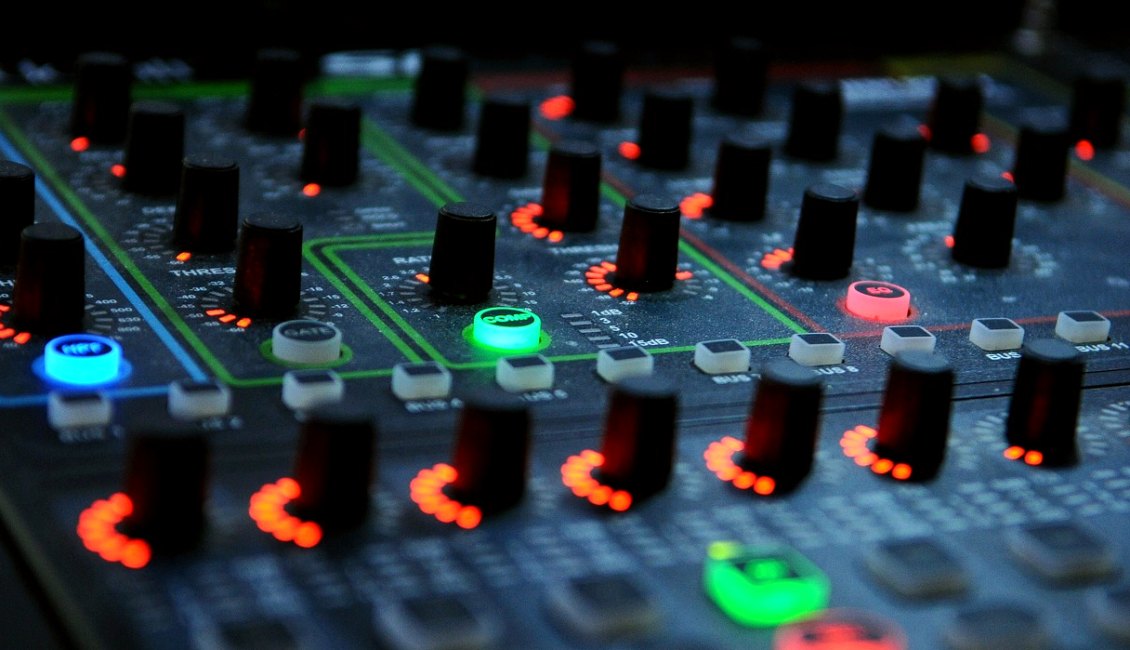
The question behind most audio complaints
When learners arrive, the audio question comes up before almost anything else, usually phrased as a complaint: the stream sounds hollow, there is an echo, or the sound cuts out for a second now and then. Behind these descriptions sits one idea that we return to in the Audio Routing module. Sound on a stream is not a single signal. It is a path with several stops, and a fault at any stop shows up as the same unhappy comment from the audience.
The path usually runs from the microphone to a mixer, from the mixer to the encoder or capture device, and from there to the platform. Room sound may join along the way, and so may a laptop playing a video clip. Each stop can add delay, noise or the wrong level. Before changing any setting, I ask learners to draw that path on paper and name every device on it. The drawing alone tends to expose the problem, because the culprit is often a stop nobody remembered was in the chain.
Where echo actually comes from
Echo on a stream almost always means the same sound is entering the path twice, or coming back into it. The classic case is a remote guest whose voice plays through a room speaker, gets picked up by a nearby microphone and is sent back to the guest a moment later. They hear themselves, and the audience hears a smeared double. A second case is a camera microphone left switched on while the mixer feed is also in use. The two arrive a few milliseconds apart, and the result sounds like a bathroom.
The cure is separation, not clever processing. Keep speakers away from open microphones, or use headphones for anyone who must hear the return. Give the guest a feed that leaves out their own voice, which many mixers call a mix-minus. Switch off any camera audio you are not using on purpose. In rehearsal we test this by having one person speak while another listens to the stream output, because the speaker rarely hears the echo themselves.
- Use headphones for anyone hearing a return feed
- Mute unused camera microphones at the source
- Send guests a mix that excludes their own voice
Why levels drift during a live show
A level that sounded right in the sound check can sit badly twenty minutes later. People lean in and out, the room fills and absorbs sound, and a guest who was polite at first becomes animated. If the microphone gain is set too hot, the loud moments clip, which is a harsh distortion that cannot be repaired afterwards. If it is set too low, you raise the volume later and lift the room noise with it.
We teach a simple order of work. Set the gain at the microphone input while the person speaks at the volume they will actually use, aiming for healthy peaks that stay clear of the red. Then set the fader for the mix, and only then judge the overall stream level. Leave headroom, because a quiet but clean signal is easier to rescue than a loud one that has clipped. Appoint one person to watch the meters during the show, rather than leaving it to whoever happens to glance at the screen.
Drop-outs: audio faults versus network faults
A drop-out in sound does not always mean an audio problem. Short gaps and crackles can come from a loose or low-quality cable, a failing battery in a wireless microphone, or a laptop that is struggling and skipping its audio buffer. They can also come from the stream itself, when the upload connection cannot carry the bitrate and the encoder starts dropping data. Telling these apart saves hours of fiddling with the wrong thing.
A useful habit is to record the mixer output locally during rehearsal. If the local recording is clean and the stream is not, the fault lies further along, in the encoder settings or the venue connection, and you move on to Priya's side of the course. If the recording has the same gaps, the problem is upstream, in cables, power or the wireless link. Replace one component at a time and test again, so you know which change fixed it.
- Compare a local recording with the live stream
- Check wireless battery levels before every session
- Swap one cable or device at a time when testing
A clean path from microphone to stream
A dependable setup is usually a plain one. Use balanced cables for longer runs, keep microphone cables away from power leads, and label each channel on the mixer with tape so that nobody has to guess under pressure. Feed the mixer output into the encoder through a single, known connection, and avoid sending the same audio through two routes unless you have a reason. Fewer stops mean fewer places for trouble.
Treat room sound as a deliberate choice. In a small studio with a quiet space, one ambient microphone can give the audience a sense of the room. In a hall with a loud public address system, it can bring echo and noise, so you may prefer to take the mix directly from the desk. Whatever you decide, write it down on the checklist, so that the same choice is made the next time and by whoever is operating.
Testing the audio before the audience arrives
Audio is easiest to correct before anyone is watching. In the rehearsal module, we ask learners to run the full path for several minutes, with every microphone in use, at the real speaking volumes, while a second person listens to the actual stream on a separate device with headphones. That listener catches what the operator cannot, because the operator is hearing the room as well as the feed.
Walk through the voices you expect. A quiet speaker, a loud one and a guest on a remote link will each show a different weakness. Play any video clip you plan to use and check that its volume matches the speech. Note the final fader positions on the checklist. None of this guarantees a flawless show, since the venue connection and the platform also affect the result, but it removes the avoidable faults and leaves you free to handle the unexpected.
- Listen to the stream on a separate device
- Test every voice and every playback source
- Record final fader positions on the checklist
Echo, uneven levels and drop-outs look like separate problems, but they share one habit of solving them: follow the signal from the microphone to the stream and change one thing at a time. Draw the path, separate what should not mix, keep gain sensible, and listen from the audience side before going live. Clean audio is mostly a matter of preparation, and it is the part of a stream viewers forgive least.